
My second post of the Relative Period Modelling – detailing how to use the Relative Period database design in a SSAS (SQL Server Analysis Services) multidimensional cube. Remove the need to write a SINGLE MDX code for relative periods!
Note, this post assumes a good understanding of modelling with SSAS.
The first part, I detailed the database design of the Relative Period modelling – that design allows custom relative periods to be modeled and not be restricted by the relative period functions provided by the databases and SSAS. Please review that post if you have not already.
As with best practices of SSAS modelling (Multidimensional or Tabular), I am using VIEWS for the modelling rather than physical tables (Named Queries should also be avoided where possible) – done to avoid unnecessary cube rebuilds.
Note: I prefer to define all cube views in the cubefeed schema, allows the views to be isolated.
| Table | View | Description |
| DimDate | cubefeed.DimDate | Underling Date dimension view |
| DimDateSet | cubefeed.RP_DimDateSet | view over DimDateSet |
| DimComparativePeriod | cubefeed.RP_DimComparativePeriod | view over DimComparativePeriod |
| cubefeed.RP_FactDateSetDate | view to represent date mapping as per DimDateSet | |
| cubefeed.RP_FactComparativePeriodDate | view to represent date mappings as per DimComparativePeriod | |
| cubefeed.DimProduct | using AdventureWorksDW2016 | |
| cubefeed.DimSalesTerritory | using AdventureWorksDW2016 | |
| cubefeed.FactInternetSales | using AdventureWorksDW2016 |
The RP prefix has been used to distinctively identify objects related to Relative Periods, this will assist in large models dealing with numerous facts.
(Dim Date based views have NOT been prefixed with RP_ to avoid confusing modelers)
Am utilising AdventureWorksDW2016 database for other facts/dimensions
SSAS Modelling with Relative Period
- Create a new SSAS multidimensional database, called “RelativePeriods”
Create a datasource and dsv. - Import all the view objects defined above into DSV and map as below:
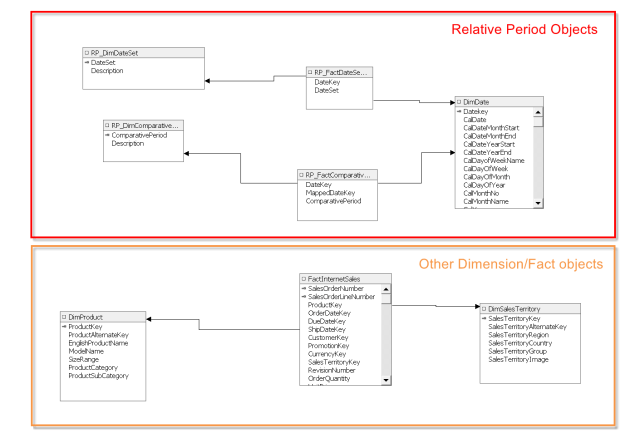
Note: Relative Periods are kept isolated from other objects. They are linked in the cube via Dimension Usage – detailed later. - Dimensions
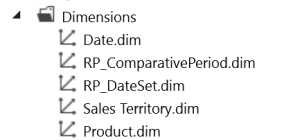
Create the following dimensions (3 for Relative periods & 2 for the sample adventure works db)- DimDate
This dimension is built off DimDate view, define hierarchies as needed.
Ensure key is DateKey

- RP_ComparativePeriod
a very simple one attribute dimension, using the similar named corresponding view created earlier (cubefeed.RP_DimComparativePeriod) - RP_DateSet
a very simple one attribute dimension, using the similar named corresponding view created earlier (cubefeed.RP_DimDateSet) - Sales Territory
Based off AdventureWorksDW2016 sample DB
- Product
Based off AdventureWorksDW2016 sample DBYou should now have the following dimensions in the project:
- DimDate
- Sales Cube
time to create a sales cube that will bring the Sample Data and the Relative Periods
together.- Create a new cube and label it Sales
- Add Dimensions to cube
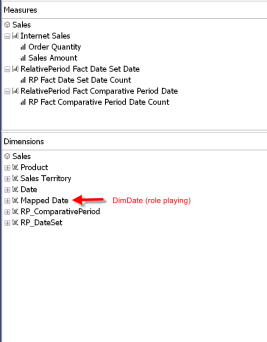
Add all dimensions created previously - Mapped Date* needs some special handling, well not so special, simply add DimDate again and rename to Mapped Date.
Ensure this dimension’s visibility is set to hidden
* This dimension is responsible for linking all measure based facts using dates to the relative periods - Add Measure groups to cube
Add the following measures groups/facts- RP Fact Date Set Date
add only a count fact and set visibility to hidden - RP Fact Comparative Period Date
add only a count fact and set visibility to hidden - Internet Sales
added from AdventureWorksDW2016
for simplicity only Sales Amount and Order Count measures are added
- RP Fact Date Set Date
- The sales cube should now have the following, no MDX needs to be defined.
- Dimension Usage – Linking it all together
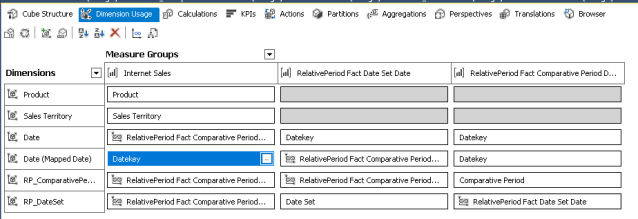
It is at this step where all pieces are linked together and the relative period process starts working for all facts.- Switch to the Dimension Usage tab
- Link Product and Sales Territory dimensions to the Internet Sales measure group using ProductKey and SalesTerritoryKey respectively
- Date dimension (not “mapped date”)
- Link to “RelativePeriod Fact Date Set Date” & “RelativePeriod Fact Comparative Period Date” measure groups using DateKey.
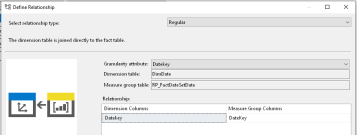
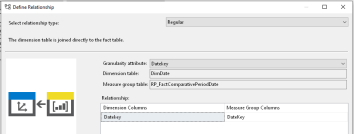
- Link Date dimension to “Internet Sales” using many to many via “RelativePeriod Fact Comparative Period Date”.

- Link to “RelativePeriod Fact Date Set Date” & “RelativePeriod Fact Comparative Period Date” measure groups using DateKey.
- RP_DateSet
- Link to “RelativePeriod Fact Date Set Date” using DateSet column.
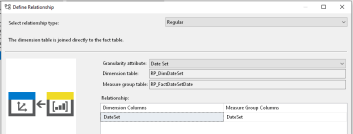
- Link to “RelativePeriod Fact Comparative Period Date” using Many to Many relationship via “RelativePeriod Fact Date Set Date”
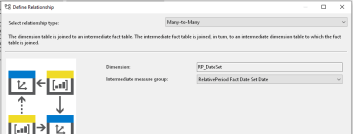
- Link to “Internet Sales” using Many to Many relationship via “RelativePeriod Fact Comparative Period Date”
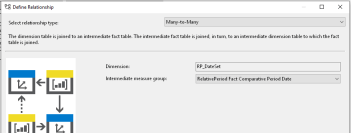
- Link to “RelativePeriod Fact Date Set Date” using DateSet column.
- RP_ComparativePeriod
- Link to “RelativePeriod Fact Comparative Period Date” using “Comparative Period” column

- Link to “RelativePeriod Fact Date Set Date” using Many to Many relationship via “RelativePeriod Fact Comparative Period Date”
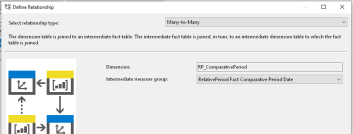
- Link to “Internet Sales” using Many to Many relationship via “RelativePeriod Fact Comparative Period Date”
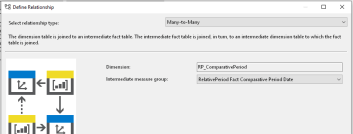
- Link to “RelativePeriod Fact Comparative Period Date” using “Comparative Period” column
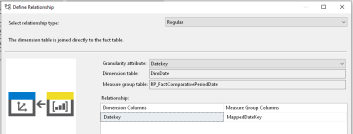
- Mapped Date – key date dimension that joins to other facts
- Link to “RelativePeriod Fact Comparative Period Date” using DateKey and MappedDateKey.
- Link to “RelativePeriod Fact Date Set Date” using Many to Many relationship via “RelativePeriod Fact Comparative Period Date”
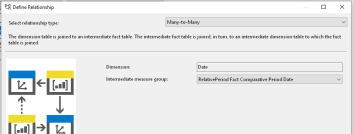
- Link to “Internet Sales” using DateKey and OrderDateKey
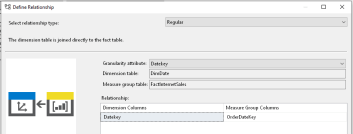
- Future facts are all to join to the Mapped Date dimension using DateKey
- Link to “RelativePeriod Fact Comparative Period Date” using DateKey and MappedDateKey.
- The final Dimension Usage matrix should look like below:
Update Data & Deploy Model
Modelling is now complete,
Since most of the relative dates configured is in the current period, whilst the AdventureWorksDW2016 database is using periods in 2016 and prior.
To allow testing, you have two options:
- Update a subset of AdventureWorks database dates to being more recent
- or Change the RelativePeriods to be in history
Will leave the decision to you, personally I have opted for option 1, allowing me to test relativeperiods using current dates.
Once data is updated, deploy model and ensure it is built and processed successfully.
Connect via Excel & Test
Lets connect via Excel and test if the relative period model actually works or not.
- Test Comparative Periods in Excel
- Bring Dates to rows and Comparative Period dimension to columns
- Drag in Internet Sales Amount in measures
- The Default node in Comparative Period dimension always returns the measure without any comparative period calculations being applied. Use the Default node to test whether comparative period calculations are working or not.
See below output:
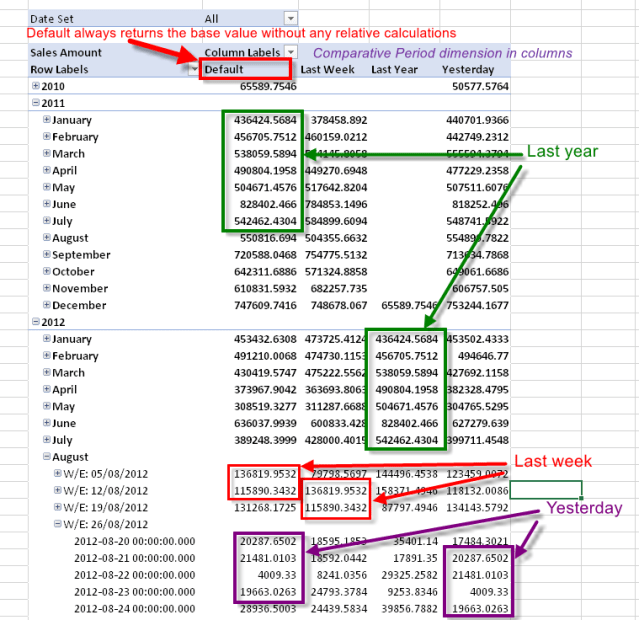
- Comparative Periods is working!!!
Compare last year values to the corresponding prior year values under default and notice how they are matching!
Similar checks can be done for Last week and yesterday. - You can further test this by adding new Comparative periods in dimensions and facts, such as last 2 days back etc, reprocess the cube (no need to deploy) and these will now simply appear and work.
- Similarly, bring DateSet dimension to the filters are and select a DateSet, the dataset in Excel will change to the constant period selected. In my case I selected “Last4CompletedWeeks”,which causes the rows to show the last 4 weeks – notice how the Date dimension on the row has no filters applied and yet is only showing last 4 weeks with data!
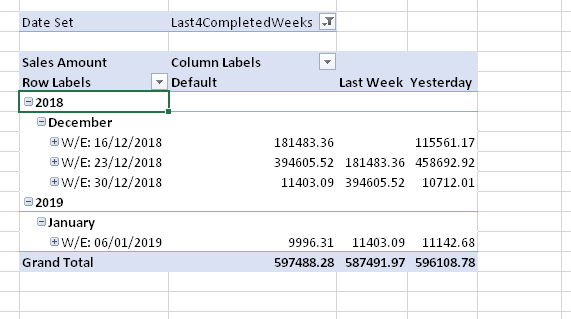
We now have a completely data driven relative period model, no need to perform complex MDX logic, simply insert the DateSets and/or Comparative Periods in the respective Dimensions and Facts and you have these relative periods working. You can make these relative period as simple or as complex as required – all that is needed is a good handle of SQL and ZERO MDX!
Hope you find this useful.

 Dharma's Data Blog